Project Submission
This page covers the platform UI for submitting your project. For project structure and logistics, see Final Project. That page covers attempts, dataset choice, and tech stack flexibility.
Project submission walkthrough
Project page
Log in to your course platform and open the project page. You will see the active project window, the deadline, and the submission form when it is open.
Submission form
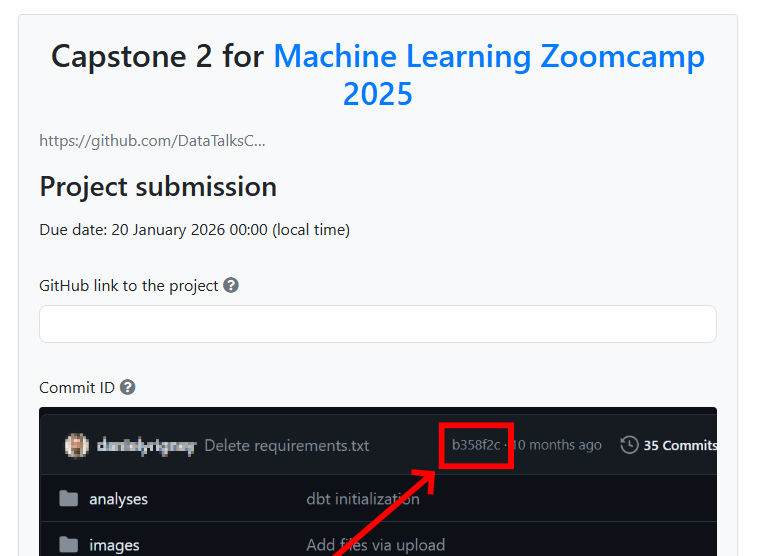
The form fields:
- GitHub link - URL to your public project repository.
- Commit ID - the specific commit hash for your submission. Use the first seven characters of the commit hash.
- Learning in public links - links to your social media posts about the project (see Learning in Public).
- Time spent on project - number of hours invested.
- FAQ contribution - share insights for the Course FAQ.
- Certificate name - name to appear on your certificate.
Certificate name vs display name
Your certificate name and display name are separate:
- Display name appears on the leaderboard. You can keep it anonymous if you prefer.
- Certificate name is what gets printed on your certificate.
Set your certificate name before submitting. Otherwise you may end up with a placeholder.
Commit ID and updating it
If you keep committing after submission, update the commit ID in the form. Reviewers should see what you intended them to review. They will look at the repo at the commit ID you submitted, not the latest version.
To check a specific commit on GitHub, use:
https://github.com/user/repo/tree/COMMIT_ID
This is what reviewers will see. To run the project locally at that commit, check out the commit ID after fetching the repo.
Project gallery
After cohorts complete, projects are visible in the platform’s project gallery.
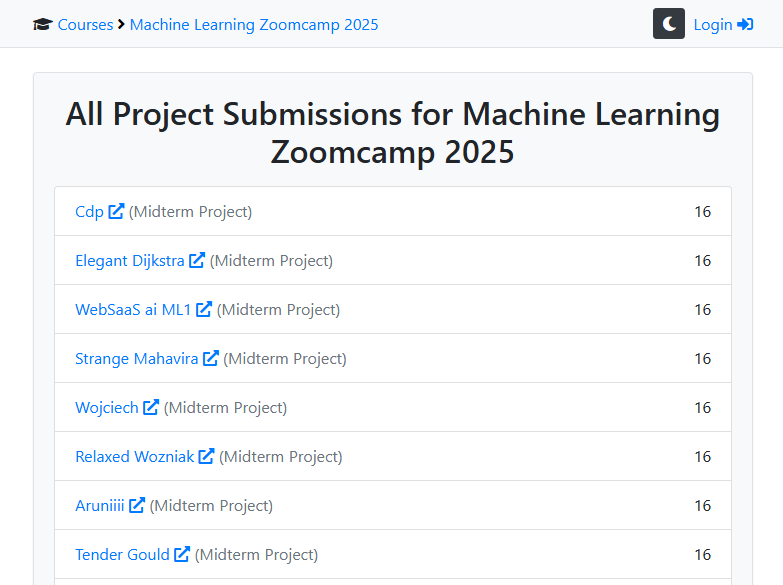
Browse past projects for inspiration:
- ML Zoomcamp 2025 projects
- Data Engineering Zoomcamp 2025 projects
- Data Engineering Zoomcamp 2024 projects
See also
Related pages:
- Final Project for general project logistics (rubric, attempts, dataset, tech stack).
- Peer Review for the platform UI for reviewing other students’ projects.
- Peer Review (logistics) for how peer review works overall.