LLM Zoomcamp FAQ
Table of Contents
- General Course-Related Questions
- Module 1: RAG
- Module 1: Agentic RAG
- Module 1 Homework
- Module 2: Vector Search
- Module 2 Homework
- Module 3: Orchestration
- Module 3 Homework
- Module 4: Evaluation
- Module 4 Homework
- Module 5: Monitoring
- Module 5 Homework
- Module 6: Best Practices
- Module 6 Homework
- Capstone Project
- Workshop: Open-Source Data Ingestion (dlt)
General Course-Related Questions
# I just discovered the course. Can I still join?
Yes, but if you want to receive a certificate, you need to submit your project while we’re still accepting submissions.
# Course: I have registered for the LLM Zoomcamp. When can I expect to receive the confirmation email?
You don't need it. You're accepted. You can also just start learning and submitting homework (while the form is open) without registering. It is not checked against any registered list. Registration is just to gauge interest before the start date.
# What is the video/zoom link to the stream for the “Office Hours” or live/workshop sessions?
The zoom link is only published to instructors/presenters/TAs.
Students participate via YouTube Live and submit questions to Slido (link is pinned in the chat when live). The video URL should be posted in the announcements channel on Telegram and Slack before it begins. You can also watch live on the DataTalksClub YouTube Channel.
Don’t post questions in chat as they may be missed if the room is very active.
# How should I start the course and follow the weekly workflow?
Start with the LLM Zoomcamp docs, the general Zoomcamp logistics docs, and the LLM Zoomcamp GitHub repository.
You can start whenever you want. The videos and GitHub materials are available, and the deadlines are listed in the course management platform.
A typical workflow is:
- Watch the lesson videos.
- Work through the lesson notebooks/code.
- Read the homework instructions on GitHub.
- Submit answers through the course platform before the deadline.
Homework is similar to the lesson flow, but uses a different dataset or slightly different task.
# Leaderboard: I am not on the leaderboard / how do I know which one I am on the leaderboard?
When you set up your account, you are automatically assigned a random name, such as “Lucid Elbakyan.” Click on the "Jump to your record on the leaderboard" link to find your entry.
If you want to see what your Display name is, click on the "Edit Course Profile" button.
- First field: This is your nickname/displayed name. You can change it if you want to be known by your Slack username, GitHub username, or any other nickname of your choice. This is useful if you want to remain anonymous.
- Second field: Change this to your official name as in your identification documents—passport, national ID card, driver's license, etc. This is mandatory if you do not want "Lucid Elbakyan" on your certificate. This name will appear on your Certificate!
# Certificate: Can I follow the course in a self-paced mode and get a certificate?
No, you can only get a certificate if you finish the course with a "live" cohort.
To get the certificate, you need to finish a capstone project and complete the required peer reviews. Homework is not required. You can work through the material and prepare your project in self-paced mode, but project submission and peer review must happen while a live cohort is accepting them.
# I missed the first homework - can I still get a certificate?
Yes, you need to pass the Capstone project to get the certificate. Homework is not mandatory, though it is recommended for reinforcing concepts, and the points awarded count towards your rank on the leaderboard.
# Homework: Why does the content keep changing?
If the homework title contains [DRAFT], it means the homework is not ready yet.
The homework is ready only when both are true:
- The homework form is open on the course management platform.
- The homework title does not contain
[DRAFT].
Until then, the content can still change. Working on the material or homework in advance is at your own risk, because the final version can be different.
# When will the course be offered next?
Summer 2027.
# Are there any lectures/videos? Where are they?
Use the LLM Zoomcamp GitHub repository as the main entry point.
Open the lesson folders in the repo. Each lesson page has the relevant videos linked at the top.
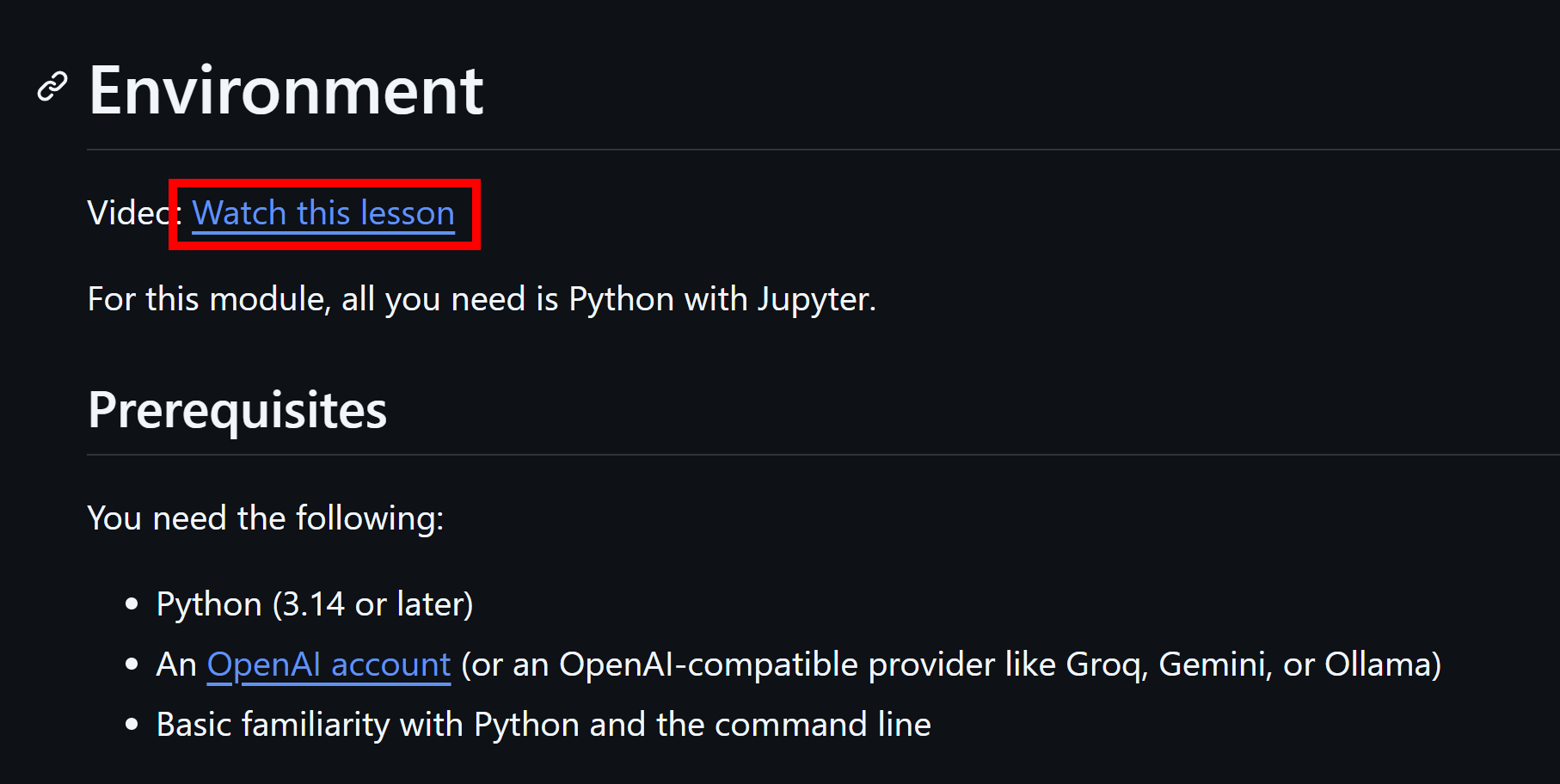
When in doubt, follow the GitHub repo first, because it is easier to keep updated than the YouTube playlist.
# Where can I track the LLM Zoomcamp syllabus, deadlines, homework, and progress?
Use the LLM Zoomcamp course management platform.
It contains the current cohort structure, homework, deadlines, and progress tracking. The process is the same as in other DataTalks.Club Zoomcamps.
# Are there live sessions or office hours for each module?
There are no separate live sessions for every module by default. Module materials are pre-recorded and available in the course repo.
Live sessions are announced separately when they happen. If you are stuck, ask your question in Slack and follow the asking questions guidelines.
Optional extra support is available through AI Shipping Labs, a paid community that includes regular Zoom office hours and additional structure. This is optional; the DataTalks.Club course content remains free.
# Can I use Bluesky for learning in public credits?
Yes. Bluesky posts can be used for learning in public credits.
# Where is the LLM Zoomcamp Telegram channel?
The Telegram channel is https://t.me/llm_zoomcamp.
Use it for announcements. For technical discussion and questions, use the course Slack channel.
# Why is the number of documents in the FAQ dataset different from the video, and why do my RAG results differ?
The course loads documents from the live FAQ dataset, which changes over time as questions are added, updated, or deleted. If your notebook downloads the latest data, its document count and RAG index can differ from the snapshot used when the videos were recorded. Different retrieved context can then produce a different final answer.
This does not necessarily mean your implementation is wrong. To reproduce a video exactly, use the same dataset snapshot or Git commit; otherwise, expect results from the current dataset to differ.
# The homework submission form is still open even though the deadline has passed — can I still submit?
Yes. As long as the submission form is still open, you can submit your answers, even if the listed deadline has already passed. You can no longer submit only after the form has been closed — so while it's still open, go ahead and submit.
# Can I submit homework after the deadline, or get a deadline extension?
No. We don't give individual deadline extensions, and once the homework submission form is closed you can no longer submit it — there are no late submissions. While the form is still open you can submit, even if the listed deadline has already passed.
Missing a homework won't affect your certificate: homework isn't mandatory, only passing the Capstone project is. Homework points only count toward your leaderboard rank, so you'll still appear on the leaderboard with your other submissions.
# Will the name I put in the certificate field be shown publicly online or shared with third parties?
No. The certificate name only appears on your certificate — it isn't published online or shared with third parties. The public leaderboard uses your separate display name instead, which is a random nickname (like “Lucid Elbakyan”) and anonymous by default.
You can set both in “Edit Course Profile”: the first field is your public nickname for the leaderboard, and the second is the official name printed on your certificate. This lets you keep your real name off the public leaderboard while still having it on the certificate.
# Does the course certificate show the number of course hours?
No. The certificate does not state a total number of hours.
Module 1: RAG
# Why are we not using Langchain in the course?
LangChain is a framework for building LLM-powered apps. In this course, we first build the core pieces ourselves: prompting, retrieval, indexing, and evaluation.
Think of it like learning HTML, CSS, and JavaScript before using React or Angular. Frameworks are easier to use well once you understand what they automate.
# OpenAI: Error when running OpenAI responses.create command
You may receive the following error when running the OpenAI responses.create command due to insufficient credits in your OpenAI account:
OpenAI API Error: Insufficient credits
# OpenAI: Error: RateLimitError: Error code: 429 -
RateLimitError: Error code: 429 - {'error': {'message': 'You exceeded your current quota, please check your plan and billing details. For more information on this error, read the docs: [https://platform.openai.com/docs/guides/error-codes/api-errors.](https://platform.openai.com/docs/guides/error-codes/api-errors.)', 'type': 'insufficient_quota', 'param': None, 'code': 'insufficient_quota'}
The above errors are related to your OpenAI API account’s quota. There is no free usage of OpenAI’s API, so you will need to add funds using a credit card (see pay-as-you-go in the OpenAI settings at platform.openai.com). Once added, re-run your Python command and you should receive a successful return code.
Steps to resolve:
Add credits to your account here (min $5).
In
responses.create(model='gpt-4o', …)specify one of the models available to you: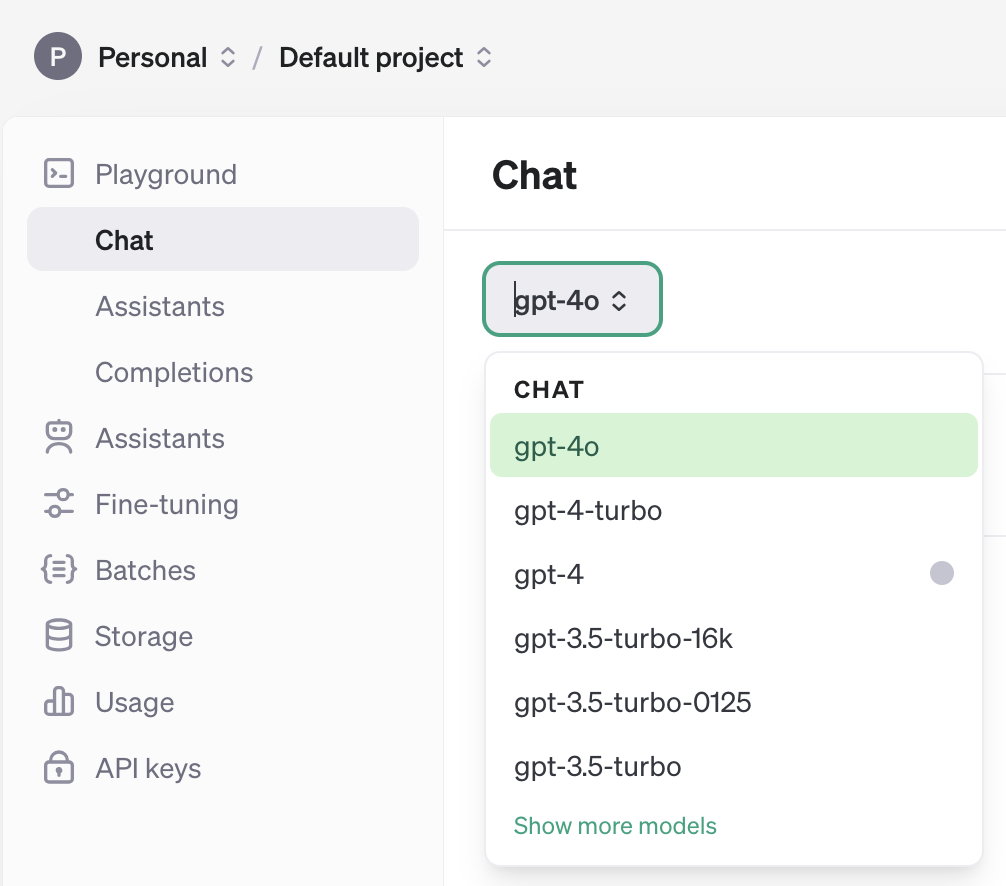
You might need to recreate an API key after adding credits to your account and update it locally.
# OpenAI: How much will I have to spend to use the Open AI API?
Using the OpenAI API for the course should cost very little. You can recharge starting from $5, but initial usage is usually fractions of one cent.
# OpenAI: Do I have to subscribe and pay for Open AI API for this course?
No, you don't have to pay for this service in order to complete the course homeworks. You can use free or low-cost alternatives listed in the course GitHub repo.
See the course list of OpenAI API alternatives.
# Why use uv package/project manager instead of the more traditional Python tools like pip and virtualenv?
The course uses uv because it's fast and convenient. It's an all-in-one tool that replaces pip, virtualenv, pip-tools, pipx, poetry, pyenv, and twine — instead of juggling several tools, you manage Python versions, virtual environments, and dependencies through one fast command with reproducible lockfiles.
You're not required to use it — pip and virtualenv still work fine — but uv makes the setup simpler and faster, which is why the lessons use it.
Official docs: https://docs.astral.sh/uv/
# Authentication: Why is my OPENAI_API_KEY not found in the Jupyter notebook?
Make sure you installed and used python-dotenv.
pip install python-dotenv
Then load the .env file in the notebook before creating the OpenAI client:
from dotenv import load_dotenv

load_dotenv()
Also check that the variable name in .env is exactly OPENAI_API_KEY.
# How to store and load API keys using .env file
Store API keys in a .env file and load them with python-dotenv, as recommended in the course.
Add .env to .gitignore so keys are never committed:
.env
Create a .env file:
OPENAI_API_KEY=sk-...
GROQ_API_KEY=gsk_...
GEMINI_API_KEY=...
Install python-dotenv if needed:
pip install python-dotenv
Load the keys in Python:
import os
from dotenv import load_dotenv

load_dotenv()

openai_api_key = os.getenv("OPENAI_API_KEY")
groq_api_key = os.getenv("GROQ_API_KEY")
# Can I use a model or provider different from the one recommended in homework?
Yes. The recommended model is not mandatory. You can use OpenAI, Gemini, Groq, OpenRouter, Azure OpenAI, local models, or another provider.
The homework is designed so you do not need a paid service. You may need to adapt the code for your provider, because response formats, tool schemas, and tokenizers differ.
For provider ideas, see the course list of OpenAI API alternatives.
# How do I start using Google Gemini models in the Module 1 notebook through the OpenAI-compatible endpoint?
To get started you need three things:
- A Gemini API key saved in your
.envfile, for example asGEMINI_API_KEY. - An OpenAI client pointed at Google’s OpenAI-compatible base URL.
- Your selected Google Gemini model name in your request.
Example code (loads the API key from .env, creates the Gemini client, and defines the llm helper):
import os
from dotenv import load_dotenv
from openai import OpenAI

load_dotenv()

client = OpenAI(
    api_key=os.getenv("GEMINI_API_KEY"),
    base_url="https://generativelanguage.googleapis.com/v1beta/openai/"
)

def llm(instructions, user_prompt, model="gemini-3.1-flash-lite"):
    message_history = [
        {"role": "developer", "content": instructions},
        {"role": "user", "content": user_prompt}
    ]

    response = client.chat.completions.create(
        model=model,
        messages=message_history
    )

    return response.choices[0].message.content
This uses the older chat completions style via the OpenAI-compatible endpoint, whereas many course examples use the newer Responses format. That means you will need to change the notebook code in a few places, especially where it reads the model response and where it handles tools or function calls.
# How can I get structured output (Pydantic objects) from Gemini via the OpenAI-compatible endpoint when responses.parse isn't available?
To get parsed structured output, use the OpenAI SDK's chat-completions parsing flow instead of the newer Responses API. This is the right choice when you want to stay on the OpenAI SDK but call a chat-completions-compatible model like Gemini through the OpenAI-compatible endpoint.
First, define the structure you want Gemini to return as a Pydantic model:
from pydantic import BaseModel

class Question(BaseModel):
    question: str
    answer: str

class Questions(BaseModel):
    questions: list[Question]
Then call chat.completions.parse with response_format=Questions. Pass the same kind of messages you would to any chat completion:
import os
from dotenv import load_dotenv
from openai import OpenAI

load_dotenv()

client = OpenAI(
    api_key=os.getenv("GEMINI_API_KEY"),
    base_url="https://generativelanguage.googleapis.com/v1beta/openai/"
)

messages = [
    {"role": "developer", "content": "Generate three FAQ questions about RAG."},
    {"role": "user", "content": "Topic: structured output with Gemini"}
]

response = client.chat.completions.parse(
    model="gemini-3.1-flash-lite",
    messages=messages,
    response_format=Questions
)

result = response.choices[0].message.parsed
print(result.questions)
Notes:
- This approach keeps using the OpenAI SDK while leveraging Gemini through Google's endpoint.
- The parsed output (e.g.,
result.questions) is a Pydantic object available directly, with no manual JSON parsing. chat.completions.parserequirespydantic(uv add pydantic).
# Ollama: How to install Ollama?
First, install Ollama by visiting https://ollama.com/download and choosing your operating system:
macOS: Download the
.pkgand install it.Windows: Download the
.msiand install it.Linux: Run the following command in the terminal:
curl -fsSL https://ollama.com/install.sh | sh
Once installed, open a terminal and type:
ollama run llama3
This command will:
- Download the LLaMA 3 model (~4GB).
- Start the model locally.
- Open a chat-like interface where you can type questions.
To test the Ollama local server, run the following command:
curl http://localhost:11434
You should receive a response similar to:
{"models": [...]}
Then, install the Python client with:
pip install ollama
Here is a minimal Python example:
import ollama

response = ollama.chat(
    model='llama3',
    messages=[{"role": "user", "content": your_prompt}]
)

print(response['message']['content'])
# Connection refused error when prompting Ollama RAG
If you encounter this error while doing the homework, you can resolve it by restarting the Ollama server using the following command:
!nohup ollama serve > nohup.out 2>&1 &
Make sure to rerun the cell containing ollama serve if you stop and restart the notebook cell.
# OpenAI: Why does my token count differ from what OpenAI reports?
When using tiktoken.encode() to count tokens in your prompt, you might see a difference compared to OpenAI’s API response. For instance, you might get 320 tokens, while OpenAI reports 327. This is due to internal tokens added by OpenAI’s chat formatting.
Here’s what happens:
- Each message in a
chat.completions.create()call (e.g.,{role: "user", content: "..."}) adds 4 structural tokens (role, content, separators). - The API adds 2 tokens globally to mark the start of assistant response generation.
- Extra newlines, whitespace, or uncommon Unicode characters in your content may slightly increase the token count.
Thus, even if your visible text is 320 tokens, OpenAI may count 327 due to these internal additions.
# API keys: how do I set them once and not re-export every terminal?
Use dirdotenv. It is like direnv, but works with both .env and .envrc, and is more portable across shells and operating systems.
uv tool install dirdotenv

# add this line to your ~/.bashrc or ~/.zshrc:
eval "$(dirdotenv hook bash)"   # or zsh

# inside your project:
echo 'OPENAI_API_KEY=sk-...' > .env
echo '.env' >> .gitignore
After that, the key is loaded automatically when you cd into the project directory.
Important: always add .env and .envrc to .gitignore so keys never land on GitHub.
direnv is also fine if you already use it. In that case, create .envrc, add your exports there, and run direnv allow.
For GitHub Codespaces, use the built-in Codespaces secrets instead of files in the repo.
For Python scripts, the equivalent is python-dotenv:
from dotenv import load_dotenv
load_dotenv()  # loads .env from project root
# How should I choose field weights for minsearch or another search engine?
The systematic approach is to evaluate different weight settings against a ground-truth dataset.
For example:
- Create a small set of representative questions.
- Mark which documents should be retrieved for each question.
- Try different field weights.
- Compare retrieval metrics such as hit rate, precision@k, recall@k, or MRR.
You can tune weights by trial and error for small projects, but evaluation is the more reliable approach. The course covers this topic more directly in the evaluation module.
# How should I prepare documents for RAG?
Prepare the data so it is clean, structured, and easy to chunk and retrieve.
Common steps:
- Remove obvious noise such as broken HTML, duplicate text, boilerplate, OCR errors, repeated headers, and repeated footers.
- Preserve useful context such as titles, section names, dates, page numbers, speaker names, and Q&A structure.
- Store the result in a structured format that is easy to process. JSON is often convenient, but it is not mandatory.
- Chunk the documents in a way that keeps related context together.
- Keep metadata that may help filtering or ranking later.
The exact format depends on the source data. The goal is not just to make the text shorter, but to make retrieval more accurate.
# uv says Failed to hardlink files in Codespaces. Is it an error?
No. This warning can happen in GitHub Codespaces when uv cannot hardlink files between the cache and the target environment.
The package still installs. uv falls back to copying files.
To suppress the warning for the current shell:
export UV_LINK_MODE=copy
To make it persistent:
echo 'export UV_LINK_MODE=copy' >> ~/.bashrc
source ~/.bashrc
See the uv documentation for more details: https://docs.astral.sh/uv/.
# dotenv is not recognized. What should I install?
Install python-dotenv:
uv add python-dotenv
Then import and use it in Python:
from dotenv import load_dotenv

load_dotenv()
The package is documented here: python-dotenv.
# Can I run the course locally instead of Codespaces?
Yes. Codespaces is just the easiest way for everyone to start with the same environment.
You can run the course locally if you are comfortable setting up Python, uv, Jupyter, Docker, and any other tools needed for the module.
If you run locally, make sure you document your setup and keep your environment reproducible.
# What happens to code saved in Codespaces if I do not commit it?
The code is saved inside the Codespaces Linux VM.
However, you should still commit your work regularly. Codespaces can stop, disconnect, or be deleted later, and committing makes sure your work is stored in your GitHub repository.
# WSL2: ResponseError: model requires more system memory (X.X GiB) than is available (Y.Y GiB). My system has more than X.X GiB.
Your WSL2 is set to use Y.Y GiB, not all your computer memory. To allocate more RAM, follow these steps:
Create a
.wslconfigfile under your Windows user profile directory:C:\Users\YourUsername\.wslconfig.Include the desired RAM allocation in the file:
[wsl2]
memory=8GB
Restart WSL using the command:
wsl --shutdownRun the
freecommand in WSL to verify the changes.
For more details, read this article.
# My Codespace won't reconnect (stuck on "Finishing up") or my setup has disappeared — what should I do?
These are usually GitHub Codespaces reliability issues rather than a problem with the course, so there's no single guaranteed fix — but the following workarounds resolve most cases.
Codespace won't connect / stuck on "Finishing up":
- Go to github.com/codespaces, stop the codespace, and start it again.
- If it still won't connect, open it in the browser instead of desktop VS Code, or try a different browser (Edge/Chrome/Brave).
- As a last resort, delete the codespace and create a new one.
"My setup is all gone":
- The repo in
/workspacespersists across stop/start, but a rebuild or a brand-new codespace starts from a clean image, and system/global installs outside your project don't always survive. Reinstalling is quick withuv(uv sync/uv add ...). - Commit and push your work often — uncommitted changes survive a stop/start but are lost if you delete or recreate the codespace.
If Codespaces keeps being flaky for you, consider running the course locally instead — see "Can I run the course locally instead of Codespaces?".
# Do I have to use OpenAI, or can I use a different provider?
If the provider used in the course isn't available or is blocked in your region (or you simply prefer another one), you can use any other LLM provider — the course isn't tied to OpenAI. Just switch to something else:
- Hosted, OpenAI-compatible providers — e.g. Groq, OpenRouter, DeepSeek, Gemini, Z.ai, Mistral. The course code uses the OpenAI client, so you usually only need to change the
base_url, the API key, and the model name. - Open models via Hugging Face (e.g. Qwen, Llama) if you prefer hosted open-source models.
- Serve a model locally with Ollama, vLLM, LM Studio, or anything else — no external API call at all, so regional blocks don't apply and you don't need a paid key. Most of these also expose an OpenAI-compatible endpoint, so the course code works with only a
base_urlchange. - Rent a GPU machine and serve the model there (e.g. with vLLM) if your own machine can't run the model you want. This gives you a private OpenAI-compatible endpoint to point the course code at — just remember to stop/delete the instance when you're done so you don't keep paying for it.
- A VPN also works if you just need to reach a provider that's blocked at the network level.
Anything with an OpenAI-compatible endpoint (or a locally served model) will work — pick whatever is available and convenient for you.
For a curated list of options, see Awesome LLMs in the course repo, which collects OpenAI API alternatives and tools for running models locally.
# How do I avoid hitting OpenAI rate limits (429 errors) during the course?
Free-tier and low-spend OpenAI accounts have per-minute and per-day request limits that are easy to blow through when a notebook loops over many documents. Reduce the number of API calls before you worry about handling the error after the fact.
Retry with backoff. The
openaiPython client retries automatically with exponential backoff; raise the limit so transient 429s resolve themselves instead of crashing the run:from openai import OpenAI client = OpenAI(max_retries=5)Lower concurrency. In a thread/process pool, keep the pool small (2-3 workers) so you stay under the per-minute cap. A larger pool finishes one batch fast and then fails on the next.
Cache results. Write embeddings and LLM responses to disk (JSONL, pickle, or a vector DB) and reload on re-run. Re-executing a notebook should not re-call the API for inputs you already processed.
Batch where possible. Group independent inputs into a single request (e.g. embed a list of texts in one call) instead of looping one-by-one.
Use a cheaper/free provider.
gpt-4o-miniis cheap enough for the whole course; Groq's free tier (llama-3.3-70b-versatile) has generous per-minute limits via the OpenAI-compatible endpoint.
If you already see insufficient_quota, that is a billing issue, not a rate limit — see OpenAI: Error: RateLimitError: Error code: 429.
# How can I inspect an unfamiliar LLM API response to find tool calls, token usage, or other fields?
If you’re adapting the course code to another provider or API style, first inspect the complete response object—different APIs (e.g., Responses API vs Chat Completions vs provider SDKs) expose different field names, so the fastest path is to print the whole structure.
If response is a Pydantic model, convert it to a dictionary with response.model_dump(). In a notebook, you can display it as an expandable JSON tree:
from IPython.display import JSON

# Assuming `response` is the full object returned by the API
JSON(response.model_dump())
In a script/terminal, print formatted JSON:
import json

print(json.dumps(response.model_dump(), indent=2))
Then search the printed output for the fields you care about, such as:
- tool/function calling results (often under names like
tool_calls,tools, or provider-specific structures) - token usage (often under
usage, with subfields likeprompt_tokens,completion_tokens,total_tokens) - the actual generated text (often under
choices/message/contentor provider-specific equivalents)
Once you identify the corresponding keys for your provider, update the course’s parsing code to read those fields instead of the OpenAI-specific ones (and avoid assuming tokenization fields are consistent across providers).
# uv keeps using the wrong virtual environment—how do I fix it?
This usually happens when you have multiple projects in different folders, each with its own .venv, and uv (or your shell) is still pointing to the previous environment.
Try this:
- Run
deactivateto exit the currently active virtual environment (if one is active). cdinto the folder for the project you want.- Create/use the environment in that folder:
uv venv(this creates a.venvinside the current project directory). - Activate it:
source .venv/bin/activate. - Run
which python(orwhere pythonon Windows) and confirm it points into that project's.venv.
# Using GitHub Codespaces and added a Python package, but imports fail in my Jupyter notebook—what should I do?
The notebook is probably using a different Python environment from the one where you installed the package.
Run this in a notebook cell to see the kernel's interpreter:
import sys

print(sys.executable)
Then run uv pip list in the Codespaces terminal. If the package is listed
there but sys.executable does not point into the same project environment,
use the kernel picker near the top of the notebook to select the repository's
.venv.
Restart the kernel after switching, then try the import again.
Module 1: Agentic RAG
# What are tools and functions in agentic RAG?
In the context of this course, tools and functions are closely related terms. Do not worry too much about the naming difference.
A tool/function is something the model can call when it needs external help, such as searching documents, querying a database, calling an API, or running a calculation.
The important idea is that in agentic RAG, the model can decide when to call a tool/function. In basic RAG, retrieval is usually a fixed step that happens before the model answers.
# Any free models with tool use support?
Several Groq models offer tool use, such as Deepseek R1 or Llama 4, all of which can be used for free for development.
Other providers also support tool or function calling, including Mistral, Gemini, and some local Ollama models.
You'll typically need to adapt the code when not using OpenAI, because tool schemas and response shapes differ between providers.
For more details, see the Groq Tool Use Documentation.
# Agents: "AttributeError: 'str' object has no attribute 'output'" when using OpenAI's Responses API on a non-OpenAI model
The new OpenAI Responses API (client.responses.create(...), accessed via response.output) is OpenAI-specific. Other providers (Mistral, Groq, Gemini, etc.) don't implement it.
For non-OpenAI providers, use the chat-completions API and read response.choices[0].message.content:
response = client.chat.completions.create(
    model="<provider-model>",
    messages=[{"role": "user", "content": prompt}],
    tools=tools_schema,  # may need adapting per provider
)
return response.choices[0].message.content
You'll also have to adapt the tools schema to whatever shape your provider expects.
It is okay to use the older chat.completions API for homework or projects if your provider supports that interface better than the Responses API.
# I am using Azure OpenAI and I am still getting an error of Error code: 400 - {'error': {'message': "Missing required parameter: 'tools[0].function'.", 'type': 'invalid_request_error', 'param': 'tools[0].function', 'code': 'missing_required_parameter'}}?
Modify the get_weather_tool JSON to be the following:
get_weather_tool = {
    "type": "function",
    "function": {
        "name": "get_weather",
        "description": "Get the current weather for a specific city or generate fake data",
        "parameters": {
            "type": "object",
            "properties": {
                "city": {
                    "type": "string",
                    "description": "The name of the city to get the weather for."
                }
            },
            "required": ["city"],
            "additionalProperties": false
        }
    }
}
# toyaikit: how do I use it with a non-OpenAI provider (e.g. Groq 404 error) or with Anthropic instead of OpenAI?
If you get a 404 (or similar) when using toyaikit with Groq or another non-OpenAI provider, it's because OpenAIResponsesRunner / OpenAIClient call OpenAI's Responses endpoint (responses.create), which only OpenAI implements. Switch to the chat completions classes, which use the standard chat.completions.create endpoint that Groq and other OpenAI-compatible providers support.
OpenAI or Groq (chat completions)
import os
from openai import OpenAI
from toyaikit.tools import Tools
from toyaikit.llm import OpenAIChatCompletionsClient
from toyaikit.chat.runners import OpenAIChatCompletionsRunner

tools = Tools()
tools.add_tools(my_tools_object)   # functions need type hints + an Args: docstring

# OpenAI:
llm_client = OpenAIChatCompletionsClient(model="gpt-4o-mini", client=OpenAI())

# Groq (same runner, just point the OpenAI client at Groq's base URL):
groq_client = OpenAI(
    api_key=os.getenv("GROQ_API_KEY"),
    base_url="https://api.groq.com/openai/v1",
)
llm_client = OpenAIChatCompletionsClient(model="llama-3.3-70b-versatile", client=groq_client)

runner = OpenAIChatCompletionsRunner(
    tools=tools,
    developer_prompt="You are a helpful assistant.",
    llm_client=llm_client,
)
result = runner.loop(prompt="What's the weather in Berlin?")
print(result.last_message)
Anthropic
from toyaikit.tools import Tools
from toyaikit.llm import AnthropicClient
from toyaikit.chat.runners import AnthropicMessagesRunner

tools = Tools()
tools.add_tools(my_tools_object)

# Reads ANTHROPIC_API_KEY from the environment automatically:
llm_client = AnthropicClient(model="claude-haiku-4-5")

runner = AnthropicMessagesRunner(
    tools=tools,
    developer_prompt="You are a helpful assistant.",
    llm_client=llm_client,
)
result = runner.loop(prompt="What's the weather in Berlin?")
print(result.last_message)
Notes:
runner.loop(prompt=...)runs one turn programmatically and returns a result with.last_message,.all_messages, and.tokens— no chat interface needed. Userunner.run()only for the interactive Jupyter loop.- Pass an explicit, current model id. For Anthropic,
claude-haiku-4-5/claude-sonnet-4-5work; an outdated id can 404. - For Groq you'll see a harmless
UnknownModelWarning: No pricing data...— the call still succeeds, only cost calculation is skipped.
Module 1 Homework
# Where can I find the homework questions?
Homework links are available in the course GitHub repo and in the course management platform.
For the 2026 Module 1 homework, use:
The course platform is useful for submission and deadlines, but the GitHub homework instructions often contain important extra context.
# Homework: Returning Empty list after filtering my query (HW Q3)
This is likely to be an error when indexing the data. First, you need to add the index settings before adding the data to the indices, then you will be good to go applying your filters and query.
# OpenRouter: Error code 402 when calling responses.create (max_output_tokens)
OpenRouter can return APIStatusError with code 402 when responses.create() is called without a reasonable max_output_tokens limit. This happens because OpenRouter bills/limits checks against the maximum possible output (which can be very large, around 65536 tokens), so a free or low-limit key can be rejected before the model runs. This is different from a direct OpenAI endpoint (which typically returns 429 for insufficient quota).
Fix
Pass a lower limit in your responses.create() call:
import os
from dotenv import load_dotenv
from openai import OpenAI

load_dotenv()

client = OpenAI()  # uses OPENAI_API_KEY and OPENAI_BASE_URL from .env

response = client.responses.create(
    model=os.environ["OPENAI_MODEL"],
    input=message_history,
    max_output_tokens=1024,
)
For Module 1 homework with rag_helper.py, add the same parameter in the llm() method.
response = client.responses.create(
    model=os.environ["OPENAI_MODEL"],
    input=message_history,
    max_output_tokens=1024,
)
For Module 1 homework Q6 with ToyAIKit:
from toyaikit.llm import OpenAIClient

llm_client = OpenAIClient(
    model=os.environ["OPENAI_MODEL"],
    extra_kwargs={"max_output_tokens": 1024},
)
1024 is enough for homework answers; you can raise it later if needed.
If it still fails
- Confirm your
.envpoints at OpenRouter:
OPENAI_API_KEY=sk-or-v1-...
OPENAI_BASE_URL=https://openrouter.ai/api/v1
OPENAI_MODEL=openai/gpt-oss-120b:free
Check your OpenRouter key limit and remaining credits at https://openrouter.ai/settings/keys
Prefer a pinned model (for example
openai/gpt-oss-120b:free) instead ofopenrouter/free, which can route to models with different limits.
Note: This behavior is different from OpenAI’s typical 429 handling for insufficient quota. If you still encounter issues after these steps, double-check the model and endpoint configuration to ensure the key is valid and has sufficient credits.
# What does it mean to point RAG at the chunk index in Module 1 homework?
It means you should build and search the index using the chunked documents, not the original full documents.
For example, if your original records are in documents and your split records are in chunks, fit the search index on chunks:
index.fit(chunks)
not:
index.fit(documents)
Then the RAG pipeline retrieves relevant chunks and puts only those chunks into the prompt. This is what reduces the amount of context sent to the model.
# Do homework answers need to match the options exactly?
Not always. If your numeric answer is close to one of the options, choose the closest option.
Small differences can come from:
- Slightly different filtering.
- Different dataset versions.
- Floating-point or rounding differences.
- Different model/provider behavior.
If your answer is far from every option, re-check the question, the dataset version, and the GitHub homework instructions.
See the general homework guidance: homework logistics.
# What should I do if homework questions feel unclear?
First read the GitHub homework instructions, not only the course platform page.
For Module 1 in the 2026 cohort, start here:
The homework follows the lesson workflow, but usually uses a different dataset or asks you to apply the same idea in a slightly different way.
If it is still unclear, ask in Slack and include the code or command output as text, not a screenshot. Follow the asking questions guidelines.
# How do I get token counts for Module 1 homework if I use a different provider?
For the current Module 1 homework, get the token count from the model response object.
For example, OpenAI-compatible clients usually return usage information on the response, such as response.usage.input_tokens or response.usage.prompt_tokens, depending on the API style.
If you use a non-OpenAI provider, check the provider's response object for its usage fields and adapt the code. Do not use tiktoken or cl100k_base as a generic tokenizer for Gemini, Mistral, Hugging Face, Groq, or other providers because tokenization differs by model.
If your provider does not expose token usage, use that provider's native tokenizer as an approximation. For multiple-choice homework questions, choose the closest option.
# My homework submission is rejected because my repo URL returns a non-200 status (e.g. 500) — how do I fix it?
The submission checker fetches the URL you submit with a GET request and expects an HTTP 200 response. A non-200 status (404, 500, etc.) almost always means the link isn't publicly reachable as-is. Check the usual causes:
- Private repo — make the repository public so the checker can access it.
- Trailing
.git— submit the plain repository URL (e.g.https://github.com/you/repo), nothttps://github.com/you/repo.git. - Typo in the URL — paste the exact link.
A quick test: open the URL in a private/incognito browser window. If it loads for you there, it'll work for the checker too.
Module 2: Vector Search
# What are embeddings?
Embeddings refer to the process of converting non-numerical data into numerical data while preserving meaning and context. When similar non-numerical data is input into an embedding algorithm, it should yield similar numerical data. The proximity of these numerical values allows for the use of mathematical semantic similarity algorithms. Related concepts include the "vector space model" and "dimensionality reduction."
# Warning: 'model "multi-qa-mpnet-base-dot-v1" was made on sentence transformers v3.0.0 bet' how to suppress?
To suppress the warning, upgrade sentence-transformers to version 3.0.0 or higher. You can do this by running the following command:
pip install sentence-transformers>=3.0.0
# Why was .dot(...) used directly to compute cosine similarity in the lesson, but normalization is emphasized in the homework?
In the lesson, .dot(...) was used under the assumption that the embeddings returned by the model (e.g., model.encode(...) from OpenAI) are already normalized to have unit length. In that case, the dot product is mathematically equivalent to cosine similarity.
In the homework, however, we use classic embeddings like TF-IDF + SVD, which are not normalized by default. This means that the dot product does not represent cosine similarity unless we manually normalize the vectors.
# Vector search: should I embed the question, the answer, or both?
There's no single right answer — it's an experiment to run on your dataset. The course shows three options:
- Embed the answer (
text) only — works because the model captures semantic similarity between questions and their answers. - Embed the question only — works because user queries look like the indexed questions.
- Embed
question + " " + text— often the best, but produces longer input and slightly more cost.
Pick whichever gives the best hit rate / MRR on your ground-truth set. The course materials include a side-by-side comparison.
# What is the cosine similarity?
Cosine similarity is a measure used to calculate the similarity between two non-zero vectors, often used in text analysis to determine how similar two documents are based on their content. This metric computes the cosine of the angle between two vectors, which are typically word counts or TF-IDF values of the documents. The cosine similarity value ranges from -1 to 1, where 1 indicates that the vectors are identical, 0 indicates that the vectors are orthogonal (no similarity), and -1 represents completely opposite vectors.
# Why does cosine similarity reduce to a matrix multiplication between the embeddings and the query vector?
Cosine similarity measures how aligned two vectors are, regardless of their magnitude. When all vectors (including the query) are normalized to unit length, their magnitudes no longer matter. In this case, cosine similarity is equivalent to simply taking the dot product between the query and each document embedding. This allows us to compute similarities efficiently using matrix multiplication.
# Do I need a new GitHub repo for Module 2, or just a new codespace?
Just a new codespace. A codespace is an environment (see Can I run the course locally instead of Codespaces?); you create it from your existing repository, so you don't need a new GitHub repo.
Use a separate codespace for Module 2 because the vector-search dependencies are fairly heavy. Keeping them isolated means you can simply stop or delete that codespace when you're done, rather than leaving the extra weight in your Module 1 environment. Setup is quick.
Since you may delete this codespace later, commit your work to your repository (see What happens to code saved in Codespaces if I do not commit it?).
# Why does download.py hang at 0% when downloading model.onnx from HuggingFace?
This can happen due to a slow or blocked connection to HuggingFace's CDN. Fix: download the file directly from your browser at https://huggingface.co/Xenova/all-MiniLM-L6-v2/resolve/main/onnx/model.onnx and save it to models/Xenova/all-MiniLM-L6-v2/model.onnx. The script checks if the file exists locally before re-downloading, so it'll skip straight past once it's there.
# Why do the matrix and for-loop versions of vector search give slightly different results?
In Lesson 4 (Vector Search) we compute the scores two ways — scores = X.dot(v_query) and the equivalent for-loop — and they can come out slightly different. This is normal, it's just floating-point precision. If you compare them with np.allclose(scores, scores_loop) you might get False, even though both compute the same dot products. They just add the numbers up in a slightly different order, and floating-point addition isn't perfectly associative, so the results can differ in the last few decimal places.
Under the hood, X.dot(v) runs optimized BLAS code that sums in a different order than a sequential Python loop. The math is the same; only the rounding differs, so the values aren't really "wrong."
Just compare them with a small tolerance instead of expecting an exact match:
np.allclose(scores, scores_loop, atol=1e-5)
# Why do I get IndexError: list index out of range when accessing the best chunk?
The error typically happens when the number of embeddings you generate does not match the number of document chunks. Make sure you create embeddings directly from the chunk list:
contents = [chunk["content"] for chunk in chunks]
X = embedder.encode_batch(contents)
The number of rows in X should be equal to len(chunks).
# Why does FastEmbed raise an SSL error even though the model is cached?
During construction, FastEmbed normally checks the model source. A temporary Hugging Face or network failure can therefore stop initialization even when you previously downloaded the model.
After you have populated the cache once, load the model with the same cache directory and enable local-only loading:
from fastembed import TextEmbedding

model = TextEmbedding(
    model_name="sentence-transformers/all-MiniLM-L6-v2",
    cache_dir="/models/fastembed",
    local_files_only=True,
)
Mount /models/fastembed into the container and use that same cache_dir when
initially downloading and later loading the model. A model stored only in
another cache directory, such as an unmounted host cache, won't be available
inside the container.
SparseTextEmbedding and TextCrossEncoder also accept cache_dir and
local_files_only.
If you downloaded and prepared the FastEmbed model directory yourself, you can
instead pass specific_model_path. Use retries only while initially
downloading the model. Catching every exception around normal offline
construction can hide configuration and model-format errors.
An incomplete Hugging Face cache can still trigger FastEmbed's fallback network
behavior. Use a complete, explicitly mounted cache or specific_model_path for
a fully offline deployment.
Module 2 Homework
# My Module 2 homework cosine similarity (Q2) isn't any of the options — what am I doing wrong?
The most common cause is using a different embedding model than the homework specifies. Homework 2 tells you not to use sentence-transformers and to use the lightweight ONNX Embedder from embedder.py instead:
from embedder import Embedder
model = Embedder()
Both approaches produce the same vectors for the same model, but if you embed with a different model (for example the multi-qa-mpnet-base-dot-v1 model from the lessons, or all-mpnet-base-v2) you'll get a cosine value that isn't among the options.
Also check that:
- You're embedding the page's
contentfield (not the filename or the whole dict). - You're comparing against the query vector from Q1.
- The vectors are normalized — the
Embedderreturns normalized vectors, so the dot product is the cosine similarity directly.
If your value is still slightly off after using the right model, pick the closest option — small numerical differences are expected.
Module 3: Orchestration
# How do I configure the Gemini (and OpenAI/Tavily) API keys for the Kestra module?
Kestra reads secrets from environment variables that are prefixed with SECRET_ and whose value is base64-encoded. You export them in the terminal before starting Kestra. For Gemini you need two variables — the plain one (used by the AI Copilot) and the base64-encoded SECRET_ one (used by the flows):
export GEMINI_API_KEY="your-gemini-api-key-here"                              # used by AI Copilot
export SECRET_GEMINI_API_KEY=$(echo -n $GEMINI_API_KEY | base64)             # used by the flows
export SECRET_OPENAI_API_KEY=$(echo -n "your-openai-api-key-here" | base64)  # required for flow 3
export SECRET_TAVILY_API_KEY=$(echo -n "your-tavily-api-key-here" | base64)  # required for web search (flows 3, 5, 6)
Then start (or restart) Kestra so it picks up the variables:
docker compose up -d
Inside a flow, reference a secret without the SECRET_ prefix:
{{ secret('GEMINI_API_KEY') }}
See the setup lesson for the full walkthrough. Never commit your keys to Git.
# Kestra AI Copilot replies "I can only assist with creating Kestra flows" — how do I fix it?
This message means the AI Copilot didn't get a valid Gemini API key, so it falls back to a canned refusal. In Kestra's Open Source edition the Copilot only supports Gemini, and it reads the plain GEMINI_API_KEY variable (not the base64-encoded SECRET_GEMINI_API_KEY that the flows use).
Make sure you exported the plain key before starting Kestra, then restart it:
export GEMINI_API_KEY="your-gemini-api-key-here"
docker compose up -d
If it still fails, the key is usually missing, mistyped, or rate-limited:
- Confirm the variable is actually set in the shell you ran
docker compose upfrom (echo $GEMINI_API_KEY). - Generate a fresh key in Google AI Studio.
- If you've been running the agent/multi-agent flows a lot, you may have hit the free-tier quota (
429 Resource Exhausted) — wait a minute and retry.
Note that the Copilot needs the plain GEMINI_API_KEY while the flows need SECRET_GEMINI_API_KEY — export both.
# I set SECRET_GEMINI_API_KEY but my Kestra flow still fails with an invalid/missing key — what's wrong?
The most common cause is a corrupted base64 value. If you encode the key with a trailing space or newline, the decoded secret is wrong and authentication fails.
Use echo -n (which omits the trailing newline) and quote the value:
export SECRET_GEMINI_API_KEY=$(echo -n "$GEMINI_API_KEY" | base64)
Other things to check:
- You must restart Kestra after exporting, so the container picks up the new variables:
docker compose up -d(ordocker compose down && docker compose up -d). - Reference the secret in flows without the
SECRET_prefix:{{ secret('GEMINI_API_KEY') }}. - Export the variables in the same shell session you start Kestra from.
A cleaner alternative is to put the keys in a .env file and pass it explicitly:
docker compose --env-file ./.env -f ./docker-compose.yml up -d
# Why do we need orchestration / Kestra — can't I just run the code in a notebook?
Notebooks are great for learning and experimenting, but real AI workflows need more than a script that runs once: scheduling, retries, monitoring, secret management, and reliably chaining tasks together. That's what an orchestrator like Kestra provides.
In this module Kestra is also the vehicle for the AI techniques the course is teaching: AI Copilot to generate flows from natural language, RAG to ground responses in real data, and AI agents that decide which tools to call. The goal is to see how AI fits into production-style workflows, not just notebook cells.
Kestra's AI plugins also work with any major provider (OpenAI, Gemini, Anthropic, and more), so you can swap providers in a flow without changing anything else. See the module intro for the full motivation.
# Is Kestra mandatory for the LLM Zoomcamp course, or can I use another orchestrator?
No. Kestra is the orchestrator the course teaches in Module 3, but it is not a requirement beyond that module's homework.
For the capstone project you are not restricted in technology: you can use Airflow, Prefect, Dagster, or no orchestrator at all. A plain Python script that ingests and indexes your data is enough for full points on the ingestion-pipeline criterion (a Jupyter notebook with the same steps is worth 1 point instead of 2). See the project guidelines for details.
The course uses Kestra in Module 3 because it is the vehicle for the AI techniques being taught — AI Copilot for generating flows, RAG for grounding responses, and AI agents that call tools. Other orchestrators cover the same scheduling/retry/monitoring ground, but they won't map onto those specific lessons, so it's worth running the Kestra flows at least once. If you already know Airflow (or another tool) and want to compare, give Kestra a try for the module and then use whatever fits your project best.
Kestra's AI plugins also work with any major provider (OpenAI, Gemini, Anthropic, and more), so you can swap providers in a flow without changing anything else — see the supported providers list.
# Which AI providers does Kestra support besides Gemini? Can I use Groq, Ollama, or a local model?
Kestra's AI plugin is provider-agnostic: it supports OpenAI, Gemini, Anthropic, xAI, Grok, and any OpenAI-compatible provider, including local models served through Ollama or LM Studio. You swap the provider block in a flow without changing anything else. See the full list of supported providers.
The course uses Gemini because it has a generous free tier, but you are free to use any provider. The awesome-llms list in the course repo tracks free and free-tier options; Groq is a popular choice because it is OpenAI-compatible and works with both the chat completions and responses APIs.
There are two ways to use AI in Kestra:
- The AI plugin (
io.kestra.plugin.ai) is the generic one. It is the most flexible for switching providers, though new vendor-specific API features take a bit longer to land here. - The provider-specific plugins (e.g.
plugin-gemini,plugin-openai) expose features unique to that vendor, such as Gemini video generation, before they reach the generic AI plugin.
For OpenAI-compatible providers that don't have their own plugin (DeepSeek, Groq, xAI), point the OpenAI plugin at the provider's base URL instead of the default endpoint.
# Can I use Kestra without writing any code? Is there a no-code option?
Yes. You have three options that require no hand-written YAML or code:
- The no-code form editor builds a flow from a form instead of YAML. It is form-based (not drag-and-drop like n8n), so it suits people who don't want to edit YAML directly.
- The AI Copilot generates a flow from a natural-language description, and you can iterate with follow-up messages to add tasks or change the order. See the AI Copilot lesson.
- External agent skills (Claude Code, Codex, Kestra CTL) let you generate flows and push them into Kestra from your editor without touching the Kestra UI.
Unlike Airflow, where business logic and orchestration logic are intertwined in Python, Kestra keeps the two separate: your Python script stays a plain script, and the workflow YAML just describes how and when to run it. This is closer to a cron job than to a traditional Airflow DAG.
For simple point-to-point automations (e.g. "post a Slack message when a YouTube video goes live"), a tool like Zapier or n8n may be simpler and cheaper. Kestra's advantage is observability, retries, and handling more complex or technical workflows in one place.
# Why does a generic AI assistant generate Kestra flow YAML with properties that don't exist, and how can I avoid it?
A general AI (e.g., ChatGPT) isn't grounded in Kestra's plugin schemas for your running version, so it can surface plausible but invalid property names (such as bucket/name) instead of the real, version-specific property. For example:
GCS Upload — invented bucket/name props vs. the real to property:
# Incorrect (invented props)
- id: upload_to_gcs
  type: "io.kestra.plugin.gcp.gcs.Upload"
  bucket: "my-bucket"
  name: "path/to/file"

# Correct
- id: upload_to_gcs
  type: "io.kestra.plugin.gcp.gcs.Upload"
  to: "gs://my-bucket/path/to/file"
BigQuery LoadFromGcs — split projectId/dataset/table vs. the real destinationTable:
# Incorrect (pseudo-split properties)
- id: load_to_bq
  type: "io.kestra.plugin.gcp.bigquery.LoadFromGcs"
  projectId: "my-project"
  dataset: "my_dataset"
  table: "my_table"

# Correct
- id: load_to_bq
  type: "io.kestra.plugin.gcp.bigquery.LoadFromGcs"
  destinationTable: "my-project.my_dataset.my_table"
To avoid this:
- Cross-check generated YAML against the official plugin docs: https://kestra.io/plugins/plugin-gcp
- Use Kestra's built-in AI Copilot, which is grounded in the current plugin schema for your running version.
- Validate and test your YAML in your Kestra environment to ensure it parses and runs as expected.
Note that plugin properties can vary by plugin version; what's correct in one release may be invalid in another. If you share a snippet, we can help verify it against the docs.
# Why is token usage monitored in Kestra workflows?
Token usage is tracked because it maps directly to what LLM providers charge you for, and Kestra workflows run LLM calls on a schedule or in loops where costs add up fast. The main reasons:
- Cost control: tokens are the unit providers bill by, so tracking usage lets you budget, forecast, and spot cost spikes before they get expensive.
- Prompt optimization: seeing how many tokens each prompt and response consumes helps you tighten prompts and trim output without losing quality.
- Guardrails: in long-running or looping flows, usage monitoring lets you set thresholds and alerts so a runaway task doesn't quietly rack up a large bill.
In practice, each AI task in a Kestra flow can capture usage from the provider's response (for example usage.total_tokens), and you can surface those numbers in logs, metrics, or dashboards to keep an eye on spend per run.
# How do I fix the Docker error 'mounts denied: The path /tmp/... is not shared from the host'?
This error means Docker Desktop isn't allowed to access the host path the container is trying to mount (commonly /tmp/kestra-wd when running Kestra). Add the path to Docker Desktop's file sharing list:
- Open Docker Desktop.
- Click the gear icon (Settings) in the top right.
- Go to Resources > File Sharing.
- Click the + (Add) button.
- Enter
/tmp(or the specific path like/tmp/kestra-wd) and press Enter. - Click Apply & restart.
Once Docker restarts, rerun docker compose up -d to start Kestra.
# Kestra: Gemini model returns 404 or is unavailable. What do I do?
Model availability changes over time and can vary by account. If a course workflow returns a 404 NOT_FOUND saying that its Gemini model is unavailable, replace the model id in the affected YAML file with one currently available to you. For example, in a Kestra flow:
provider:
  type: io.kestra.plugin.ai.provider.GoogleGemini
  modelName: gemini-3.5-flash
  apiKey: "{{ secret('GEMINI_API_KEY') }}"
In docker-compose.yml, update the equivalent model-name setting. Then rerun the flow, or restart the Docker Compose services if you changed their configuration.
Check the official Gemini model list for current model ids. Do not assume the original model was permanently shut down based on a temporary 404; select a model that the API makes available to your account.
Module 3 Homework
# What do I submit for the Module 3 (Kestra) homework? Everything was done inside Kestra.
The submission form asks for a link to a public repo (GitHub or any code-hosting site), but unlike earlier modules the work happens inside the Kestra UI rather than as code you write from scratch. That leaves people unsure what to put in the repo.
Download the Kestra flows you created or edited for the homework and commit them to the repo. The flow YAML files are the code you submit. If you also wrote or tweaked any scripts the flows call, include those too. A README summarizing your answers is welcome but not required as long as the flow files are there.
Put the flows in a folder (e.g. module-3/flows/), make the repo public, and paste the link in the submission form. The form answers (Q1, Q2, etc.) are separate and go directly into the form fields.
Module 4: Evaluation
# Evaluation: "JSONDecodeError: Expecting value" when generating ground-truth questions with the LLM
The LLM sometimes wraps the JSON in a markdown code fence or adds prose around it, so json.loads(response) fails with:
JSONDecodeError: Expecting value: line 1 column 1 (char 0)
Force JSON output with OpenAI's response_format:
response = openai_client.chat.completions.create(
    model='gpt-4o-mini',
    messages=[{"role": "user", "content": prompt}],
    response_format={"type": "json_object"},
)
parsed = json.loads(response.choices[0].message.content)
Also be explicit in the prompt about the expected shape:
Output a JSON object with a single key "questions" whose value is a list of 5 strings.
Do not include any extra text, explanation, or formatting.
Most providers have an equivalent (Gemini's response_mime_type="application/json", Groq's response_format, etc.).
# Evaluation: Jupyter kernel crashes when embedding the ground-truth set
Small-RAM machines (Codespaces default, low-end laptops) run out of memory when an embedding model is loaded alongside the rest of the notebook state.
Workarounds:
- Switch to a smaller embedder.
sentence-transformers/all-MiniLM-L6-v2(384-dim) is a common drop-in. Note: switching models will change your hit-rate / MRR numbers, so re-run the eval after the switch. - Move the embedding step into a separate Python script that you run from the terminal, then load the saved vectors back into the notebook.
- Use a Codespaces machine type with more RAM (Settings → "Machine type" on a Codespace), or run locally.
- Process the ground-truth set in batches and free memory between batches (
del,gc.collect()).
# Evaluation: hitting rate limits while generating the ground-truth dataset
Free-tier Gemini limits both per-minute and per-day requests. Adding time.sleep(4) only fixes the per-minute side — a long tqdm loop can still blow through the per-day quota in one run.
Options when this happens:
- Spend ~$5 on OpenAI and use
gpt-4o-mini. It's cheap enough to embed/generate the entire ground-truth set and has higher rate limits. - Use Groq's free tier (
llama-3.3-70b-versatile) — generous request-per-minute limits. - Lower concurrency for thread-pool calls. Use a smaller pool size (2–3 workers) instead of pushing the API hard.
- Resume from where you stopped. Save progress periodically (e.g. dump the partial results to a JSONL file) so a hit limit doesn't lose all work.
# Why is there a gap between lessons 6 and 11 in Module 4?
No lessons are missing. Module 4 is split into two subsections, and the filenames reflect that structure:
01–06: RAG evaluation11–15: agent evaluation
You can read the numbering as lessons 0.1–0.6 for the first subsection and 1.1–1.5 for the second. That is why the filenames jump from 06-search-tuning.md to 11-evaluation-intro.md.
# Why can MRR improve while Hit Rate stays the same?
Hit Rate can stay unchanged while MRR improves when the same queries still
retrieve a relevant document in the top‑k results, but the first relevant
document moves higher. For example, moving a correct result from position 5 to
position 1 leaves that query's Hit Rate contribution at 1, while its
reciprocal-rank contribution improves from 1/5 to 1.
If the final Hit Rate and MRR values are exactly equal, verify the evaluation code before trusting the result. Equality is legitimate only when every query with a hit has its first relevant result at position 1 (including the special case where both metrics are zero). Check that:
- Hit Rate counts a query once when any result is relevant.
- MRR uses only the first relevant result and calculates
1 / (rank + 1). - The MRR loop stops after the first relevant result.
- Both metrics divide by the same total number of queries.
- The relevance labels and result ordering are correct before aggregation.
Reranking, chunking, or embedding changes can improve MRR without changing Hit Rate, but inspect the per-query relevance lists to confirm that relevant results actually moved upward.
# Where is the code or notebook for the agent-evaluation lesson?
The agent-evaluation code is in the
04-evaluation/code directory.
The lesson itself is
14-agent-evaluation.md.
Module 4 Homework
Module 5: Monitoring
# In Windows OS: OSError: [WinError 126] The specified module could not be found. Error loading "C:\Users\USER\AppData\Local\Programs\Python\Python310\lib\site-packages\torch\lib\fbgemm.dll" or one of its dependencies.
Solution 1: Install Visual C++ Redistributable.
Solution 2: Install Visual Studio, not Visual Studio Code.
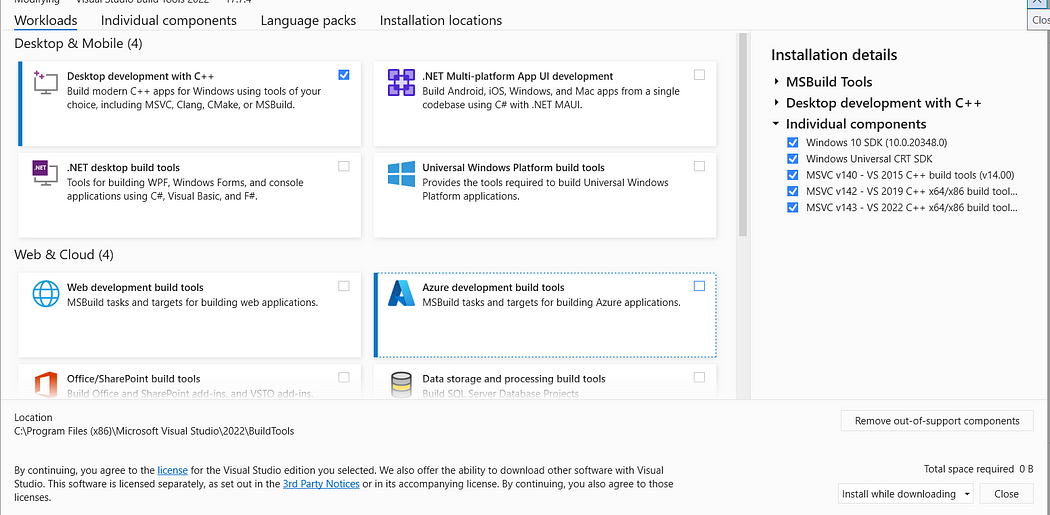
For more details, please follow this link: discuss.pytorch.org
# OperationalError when running python prep.py: psycopg2. OperationalError: could not translate host name "postgres" to address: No such host is known. How do I fix this issue?
To resolve this error, update the .env file:
- Change the
POSTGRES_HOSTvariable tolocalhost.
POSTGRES_HOST=localhost
# How set Pandas to show entire text content in a column. Useful to view the entire Explanation column content in the LLM-as-judge section of the offline-rag-evaluation notebook
By default, Pandas truncates text content in a column to 50 characters. To view the entire explanation provided by the judge LLM for a non-relevant answer, use the following instruction:
pd.set_option('display.max_colwidth', None)
- Option:
display.max_colwidth - Type:
intorNone - Description: Sets the maximum width in characters of a column in the representation of a pandas data structure. When a column overflows, a "..." placeholder is used in the output. Setting it to 'None' allows unlimited width.
- Default: 50
Refer to the official documentation for more details.

# How to normalize vectors in a Pandas DataFrame column (or Pandas Series)?
To normalize vectors in a Pandas DataFrame column, you can use the following approach:
import numpy as np

normalize_vec = lambda v: v / np.linalg.norm(v)

df["new_col"] = df["org_col"].apply(normalize_vec)
# How to compute the quantile or percentile of Pandas DataFrame column (or Pandas Series)?
To compute the 75% percentile or 0.75 quantile:
quantile = df["col"].quantile(q=0.75)
# How can I remove all Docker containers, images, and volumes, and builds from the terminal?
- Delete all containers (including running ones):
docker rm -f $(docker ps -aq)
- Remove all images:
docker rmi -f $(docker images -q)
- Delete all volumes:
docker volume rm $(docker volume ls -q)
# Session State: I want the user to only be able to give feedback once per submission (+1 or -1). When I submit text using the ask button, the buttons should be disabled if `st.session.submitted` is False. The issue is mainly with `st.session.submitted`, which gets reassigned to True again despite one feedback button being pressed.
Module 5 Homework
# Why does my SQLite exporter receive no spans, or report "Overriding of current TracerProvider is not allowed"?
OpenTelemetry allows the global tracer provider to be registered only once per
Python process. In a notebook, creating another TracerProvider and calling
trace.set_tracer_provider(provider) again doesn't replace the first provider.
A tracer returned by trace.get_tracer(...) therefore remains connected to the
original exporter, which can leave traces.db empty.
Restart the kernel, replace the exporter in the original setup cell, and run the setup cells once in order.
If you intentionally need an independent provider for manually created spans, get the tracer directly from it:
tracer = provider.get_tracer("llm-zoomcamp")
In a script, initialize the provider and exporter once. Separate
python script.py runs start fresh Python processes, so they don't share the
previous global provider.
# Why does my execution script freeze or crash with `RecursionError` when initializing OpenTelemetry with `ConsoleSpanExporter` in Module 5?
Upgrade OpenTelemetry first. Older releases did not support Python 3.14, while current releases do:
uv add --upgrade opentelemetry-api opentelemetry-sdk
Restart the Python process or notebook kernel after upgrading, then run the
ConsoleSpanExporter example again. You can confirm which versions the project
uses with:
uv run python -c "import importlib.metadata as m; print(m.version('opentelemetry-api'), m.version('opentelemetry-sdk'))"
If upgrading is not possible, use Python 3.13 for the homework.
Do not replace the console exporter with an incomplete custom exporter merely
to hide the error. When you reach the SQLite question, use the complete
SQLiteSpanExporter from the homework, including its shutdown() and
force_flush() methods.
# How do I adapt the monitoring homework to a provider such as Groq or Gemini that uses Chat Completions?
Do not give starter.py a fake OPENAI_API_KEY. Configure its module-level
client for your provider instead. For Groq:
import os
from openai import OpenAI

client = OpenAI(
    api_key=os.environ["GROQ_API_KEY"],
    base_url="https://api.groq.com/openai/v1",
)
rag = RAGBase(
    index=index,
    llm_client=client,
    model="<current-groq-model-id>",
)
Use a model ID currently available from your provider; an OpenAI model name
will return a 404 on Groq.
Next, keep the course's LLMCallRecord and RAGBase, but change the three
RAGWithMetrics methods that depend on the OpenAI Responses API. Providers
with an OpenAI-compatible Chat Completions endpoint return the answer and token
counts under different attributes:
class RAGWithMetrics(RAGBase):
    def __init__(self, *args, **kwargs):
        super().__init__(*args, **kwargs)
        self.last_call: LLMCallRecord | None = None

    def llm(self, prompt):
        start_time = time.time()
        response = self._call_llm(prompt)
        response_time = time.time() - start_time
        self._log_response(prompt, response, response_time)
        return response.choices[0].message.content

    def _call_llm(self, prompt):
        return self.llm_client.chat.completions.create(
            model=self.model,
            messages=[
                {"role": "system", "content": self.instructions},
                {"role": "user", "content": prompt},
            ],
        )

    def _log_response(self, prompt, response, response_time):
        usage = response.usage
        self.last_call = LLMCallRecord(
            model=self.model,
            prompt=prompt,
            instructions=self.instructions,
            answer=response.choices[0].message.content,
            prompt_tokens=usage.prompt_tokens,
            completion_tokens=usage.completion_tokens,
            total_tokens=usage.total_tokens,
            response_time=response_time,
            cost=0.0,
        )
Configure llm_client with the provider's API key and OpenAI-compatible base
URL, and pass its model name to RAGWithMetrics. The 0.0 cost is a deliberate
placeholder: the course's calculate_cost handles only its OpenAI model. Add
the selected provider's current input and output prices before using cost in a
dashboard or database.
If the provider rejects the first request because it is already larger than
your token limit, retries and delays will not help. Reduce the retrieved
context—for example, change the default num_results in RAGBase.search() from
5 to 2—so each request fits within the limit.
Module 6: Best Practices
# Docker: When trying to run a streamlit app using docker-compose, I get: Error response from daemon: failed to create task for container: failed to create shim task: OCI runtime create failed: runc create failed: unable to start container process: exec: "streamlit": executable file not found in $PATH: unknown. The app runs fine outside of docker-compose
To resolve this issue:
Ensure you have created a
Dockerfile.Add
streamlitto thedocker-composeconfiguration.Run the following command to rebuild and start the application:
docker-compose up --build
Module 6 Homework
Capstone Project
# Is it a group project?
No, the capstone is an individual project.
You can collaborate or discuss a larger idea with other students, but each submitted project must stand on its own. A shared system can work only if it is clearly decomposed into independent projects, where each person has a separate qualifying component and a separate repository.
If the work cannot be evaluated independently for each participant, it does not satisfy the project requirement.
# Do we submit 2 projects, what does attempt 1 and 2 mean?
You only need to submit one project. If the submission at the first attempt fails, you can improve it and re-submit during the attempt#2 submission window.
- If you want to submit two projects for the experience and exposure, you must use different datasets and problem statements.
- If you can’t make it to the attempt#1 submission window, you still have time to catch up to meet the attempt#2 submission window.
Remember that the submission does not count towards the certification if you do not participate in the peer-review of three peers in your cohort.
# Does the competition count as the capstone?
No, it does not. You can participate in the math-kaggle-llm-competition as a group if you want to form teams; but the capstone is an individual attempt.
# How is my capstone project going to be evaluated?
Each submitted project will be evaluated by three randomly assigned students who have also submitted the project.
You will also be responsible for grading the projects from three fellow students yourself. Please be aware that not complying with this rule implies you may fail to achieve the Certificate at the end of the course.
The final grade you receive will be the median score of the grades from the peer reviewers. The peer review criteria for evaluation must follow the guidelines defined here (TBA for link).
# When and how will we be assigned projects for review/grading?
After project submissions close, your peer-review assignments become available on the course-management platform. Use the platform to see the projects assigned to you and the separate peer-review deadline.
You get the assignments automatically - there is no sign-up step, and you don't need to ask the course team for them. You also can't pick which projects you review.
# I’ve already submitted my project. Why can’t I review any projects?
Once the project submission deadline has passed, projects will be assigned to you for evaluation. You can't choose which projects to evaluate, and you can’t review before the list has been released.
# How can I find some good ideas or datasets for the project?
Please check this GitHub page for several ideas and datasets that could be used for the project, along with tips and guidelines.
# Project: do I need an orchestration tool (Airflow, Mage, Kestra) for the capstone?
No. A plain Python script that ingests and indexes your data is enough for full points on the "ingestion pipeline" criterion. A Jupyter notebook with the same steps is worth 1 point instead of 2.
Use an orchestrator only if it actually fits your project — for example, recurring ingestion of a feed that updates daily. Don't add one just to score the criterion.
# Project: how do I evaluate a recommender-style RAG (no obvious Q&A ground truth)?
Two complementary approaches that both score for the evaluation criterion:
Synthetic ground truth (same idea as the course, adapted). For each item in your dataset, prompt the LLM with the item's description and ask it to generate ~5 user queries that should return that item as the top result. Then run those queries through your retrieval and measure hit rate / MRR / NDCG.
LLM-as-a-judge for end-to-end quality. Sample queries, run the full RAG, and have an LLM rate the result for relevance/usefulness on a fixed rubric (e.g. 1–5 scale, with criteria you specify in the prompt).
NDCG is often a better fit than hit-rate for ranking-style problems where multiple items are acceptable answers — it rewards getting good items high in the list, not just first.
# Project: my corpus is large (long PDFs, many paragraphs). What's a good chunking strategy?
Don't try to find the perfect chunker upfront — iterate.
- Start simple: fixed-size chunking (~1000 tokens with some overlap) and run a small ground-truth eval.
- Try smart chunking: ask an LLM to split each document into logical sections, then index each section.
- Add a short LLM-generated summary per chunk and index it alongside, or use it to boost retrieval.
- For long, structured documents (legal, financial), prefer hybrid search (BM25 + dense) so exact wording isn't lost during semantic matching.
Useful tools for parsing PDFs to clean markdown before chunking:
pymupdf4llm— fast, decent quality.- Docling — slower but higher quality on tables/figures.
- GROBID — for academic papers, extracts structure (sections, refs, etc.).
Run the eval again after each change. The goal is measurable improvement on hit rate / MRR for your ground-truth set, not a "perfect" chunker in the abstract.
# Project: what does "reproducibility" mean — do reviewers need access to my API keys?
Never share API keys or hosted-service credentials in your repo. Reproducibility means a peer reviewer can clone the repo and follow your README to recreate the system from scratch — using their own credentials.
Concretely:
- Provide a script (or notebook) that ingests the dataset and (re)builds the search index locally.
- Ship a
.env.examplewith the variable names but no values; have the reviewer create their own.envwith their own keys. Keep.envin.gitignore. - Use a cheap model (
gpt-4o-mini, Groq, etc.) so reviewers don't burn through credits when running your project. - Pin dependency versions (
requirements.txt/pyproject.tomllock file) and document the Python version (and Docker version, if used).
# Can I use a programming language other than Python (for example JavaScript, TypeScript, Go, Rust, Java, Scala, C#, or R) for homework or the project?
In most cases, use Python. The course materials, examples, and reviewer expectations are Python-based, so Python is the easiest path. This applies to every homework and to the final/capstone project.
Using another programming language or stack - for example JavaScript, TypeScript, Go, Rust, Java, Scala, C#, or R - is technically possible, but do it only if you have a strong reason. We do not want to restrict your choice of technology, but a non-Python stack makes reproducibility and review harder.
If you use a language other than Python, your documentation must be very thorough. Assume the reviewer has no knowledge of that language or ecosystem. Your README should explain how to install dependencies and run the homework or project on Windows, macOS, and Linux.
For example, a Go project should include steps at the level of:
go mod tidy
go run .
The submission must still be easy to reproduce and evaluate.
# Where can I find previous LLM Zoomcamp projects?
You can browse previous LLM Zoomcamp project submissions here:
These pages show submitted repositories and can help you understand the expected scope and quality of capstone projects.
# Do I need to announce or reserve my project idea?
No. You do not need to announce or reserve your project idea before starting.
If you want feedback, you can ask in Slack. You can also look at previous projects to understand scope:
Similar topics are okay as long as your implementation is your own and your submission meets the project requirements.
# Can I use WhatsApp, Telegram, or some other interface for my project instead of a web app?
Yes. You can use any interface for your project — a web app, a CLI, a Telegram or WhatsApp bot, a Slack app, a notebook, or anything else. There are no strict guidelines on how you make the project available to the end user. Pick whatever fits your idea, as long as the project meets the evaluation criteria.
Note that the course doesn't teach how to build these interfaces, so you'll need to figure that part out on your own. With an AI assistant it's usually quite simple.
# What can I use to extract text from PDFs (or scanned/OCR documents) for my RAG project?
The course doesn't prescribe a specific tool — use whatever works best for your data. Some options people in the community reach for:
- docling — converts PDFs (and other docs) to structured Markdown/JSON, good for RAG.
- pymupdf4llm / PyMuPDF — fast text extraction, Markdown output.
- unstructured — handles many document types and layouts.
- pytesseract (Tesseract OCR) — for scanned/image-based PDFs that have no text layer.
- Hosted OCR such as Mistral OCR — if you'd rather call an API than run OCR locally.
Try a couple on a sample of your documents and see which gives the cleanest text. For how to chunk/prepare the extracted text afterwards, see "How should I prepare documents for RAG?".
# Is there a minimum dataset size for the capstone project?
No, you don't need a minimum dataset size for the capstone project. Choose enough data to demonstrate and meaningfully evaluate your retrieval or agent flow. Reviewers assess the project using the published evaluation criteria, not by counting documents or rows.
# Does my capstone project data need to come from a live API?
No, you can use a static file, a self-created dataset, or an API-backed source. For full reproducibility points, make the data accessible and provide a script that lets reviewers rebuild the knowledge base. See the project evaluation criteria for the ingestion and reproducibility requirements.
# Can I use a non-English dataset for the capstone project?
Yes, your dataset and application responses can use a language other than English. Write the README and setup documentation in English so reviewers can understand, run, and evaluate the project.
# Does the capstone project need a document-based dataset?
No, you can use structured data such as database schemas, table descriptions, or records. You still need to retrieve or query the data as part of an end-to-end RAG or agent flow. Evaluate that flow against the project criteria.
# Can I use Evidently for the capstone project?
Yes, you can use Evidently for the capstone project.
# Does the capstone project need a completely original idea?
No. You may implement an existing idea yourself. Do not reuse a dataset from the course lectures or homework for your project.
# Which commit should I put in the "Commit ID" field when I submit my project?
The commit you want reviewed — reviewers see your repo at exactly that commit and nothing after it. In practice, push everything first, then submit the latest commit on your main branch, so the two are the same thing.
The submission form on the course management platform shows an illustration of where to find the 7-character commit id on GitHub. Open your repository, look at the latest commit above the file list (or open the commits page), and copy the short hash displayed next to it.
If you prefer the command line:
git rev-parse --short HEAD
Anything you commit after submitting is invisible to reviewers, since they open
https://github.com/{username}/{repo-name}/tree/{commit-hash} or run
git reset --hard {commit-hash} after cloning. If you need to change something
before the deadline, push it and update the commit id in the form.
# How long do I have to complete the peer reviews once they're assigned?
About a week. Peer review opens after the project submission form closes, and the review window runs roughly one week from there.
The exact deadline is shown on the course management platform alongside your assigned projects — check it there rather than counting days yourself, since the cohort lead opens reviews manually and the date can shift.
Reviews only count while the window is open. If you miss it, the submission doesn't count toward your certificate, even if the project itself passed.
# Can I use AI tools like ChatGPT, Claude, or Cursor to write code for the capstone project?
Yes. AI tools are allowed for homework, the project, and peer reviews.
What we ask is that you understand what you submit. If a peer reviewer asks why you picked a particular chunking strategy, retrieval setup, or orchestrator, you should be able to explain it. Document your AI usage in the README when AI shaped major decisions - it is good practice and helps reviewers. You are not required to disclose AI usage otherwise, and there is no form to sign.
The full rules are in the AI usage policy.
# Where do I submit my capstone project?
On the current cohort's course management platform.
Project submission, and later the peer review, both happen there. Submission links from earlier cohorts point at closed forms - use the current cohort's platform unless you are deliberately looking at a past cohort.
# I submitted my capstone project. What are the remaining certificate requirements, and when do I get my score and feedback?
Submitting the project is not the last step. To meet the certificate requirements you also have to complete the peer reviews you are assigned, within the peer-review window.
You don't need to request anything or sign up for them. Once project submissions close, your review assignments appear automatically on the course management platform, together with the peer-review deadline. You can't choose which projects you get.
Your own score and the reviewers' feedback become visible only after the peer-review deadline passes. An empty score before then is normal, and it is not a reason to submit the project again as attempt 2 - resubmitting starts a fresh round and gives you another set of projects to review. Submit again only if you actually want to improve the project.
# When is the capstone project deadline?
The submission dates for the running cohort are on the course management platform, next to the submission form.
Check them there rather than on a past cohort's page: each cohort sets its own dates for attempt 1 and attempt 2, and they move from cohort to cohort.
Workshop: Open-Source Data Ingestion (dlt)
# Can I use the workshop materials for my own projects or share them with others?
Since dlt is open-source, you can use the content of this workshop for a capstone project. As the main goal of dlt is to load and store data easily, you can even use it for other Zoomcamps (like the MLOps Zoomcamp project). Feel free to ask questions or use it directly in your projects.
# How to set up a new dlt project when loading from cloud?
Start with the following command on the command line:
dlt init filesystem duckdb
More directions can be found at dlthub.com
# There is an error when opening the table using `dbtable = db.open_table("notion_pages___homework")`: `FileNotFoundError: Table notion_pages___homework does not exist. Please first call db.create_table(notion_pages___homework, data)`
The error indicates that you have not changed all instances of "employee_handbook" to "homework" in your pipeline settings.
# There is an error when running main(): FileNotFoundError: Table notion_pages___homework does not exist. Please first call db.create_table(notion_pages___homework, data)
Make sure you open the correct table in line 3:
dbtable = db.open_table("notion_pages___homework")
# How do I know which tables are in the db?
You can use the db.table_names() method to list all the tables in the database.
# Does DLT have connectors to ClickHouse or StarRocks?
Currently, DLT does not have connectors for ClickHouse or StarRocks but is open to contributions from the community to add these connectors.
# Notebook does not have secret access or 401 Client Error: Unauthorized for url: [api.notion.com](https://api.notion.com/v1/search)
If you encounter this error, it typically indicates an authorization issue with the Notion API. Here’s how you can resolve it:
- Check API Key: Ensure that you are using the correct API key with appropriate permissions.
- Verify API Endpoint: Confirm that you are hitting the correct Notion API endpoint.
- Token Expiry: Check if your token has expired and regenerate it if necessary.
- Configurations: Double-check all access configurations in your application.
If the error persists, review the API documentation and make sure all necessary authentication steps are correctly implemented.
# Error: How to fix requests library only installs v2.28 instead of v2.32 required for lancedb?
If you encounter a 401 Client Error, it may indicate the need to grant access to the key or that the key is incorrect.
To install the correct version directly from the source, use the following command:
pip install "requests @ https://github.com/psf/requests/archive/refs/tags/v2.32.3.zip"
# Why does my EU-region Logfire token return 401 Unauthorized?
Current Logfire SDK versions normally infer the region from the write token, so
an EU token should work with logfire.configure() without a manually configured
base URL. A 401 Unauthorized usually means the process loaded the wrong token
or did not load the intended .env value.
Check the configuration in this order:
- Call
load_dotenv()beforelogfire.configure(). - Make sure
LOGFIRE_TOKENis a write token from the intended project;LOGFIRE_READ_TOKENis only for reading traces. - Check for an older
LOGFIRE_TOKENalready exported by the shell. By default,load_dotenv()does not replace an existing environment variable. Useload_dotenv(override=True)when the local.envshould take precedence. - Upgrade the SDK with
uv add --upgrade logfireso token-based region detection is current.
If an older client still sends an EU token to the wrong region, explicitly
setting LOGFIRE_BASE_URL=https://logfire-eu.pydantic.dev can be used as a
fallback. The token and endpoint must belong to the same region, but this manual
setting should not be necessary with the current SDK.
See Logfire's documentation for SDK configuration and data-region URLs.
# Can I load multiple JSONL log directories into the same dlt pipeline?
Yes. Build one filesystem resource for each directory and pass the resources
together to the same pipeline, as the workshop's reference
filesystem_pipeline.py does for Claude and Codex logs.
For JSONL files with the same structure:
import dlt
from dlt.sources.filesystem import filesystem, read_jsonl

pipeline = dlt.pipeline(
    pipeline_name="agent_logs",
    destination="duckdb",
    dataset_name="agent_logs",
)

resources = []
for name, directory in {
    "claude": "/home/me/.claude/projects",
    "codex": "/home/me/.codex/sessions",
}.items():
    resource = (
        filesystem(
            bucket_url=f"file://{directory}",
            file_glob="**/*.jsonl",
        )
        | read_jsonl()
    ).with_name(name)
    resources.append(resource)

pipeline.run(
    resources,
    table_name="log_records",
    write_disposition="append",
)
Replace the example paths with your directories. table_name sends the
resources to the same table, and dlt can add columns as the schema evolves.
For heterogeneous agent logs, reuse the workshop's raw_reader() transformer
so each line is preserved consistently before loading.
# dlt.attach() in the deployment lesson uses the wrong dataset name—how do I fix it for the REST API pipeline dashboard?
The lesson 06 dashboard deploy snippet may show dlt.attach("agent_traces", destination="playground", dataset_name="agent_logs"), but that dataset_name must match what your deployed REST API pipeline actually writes.
In the reference REST API pipeline (lesson 4, e.g. code/rest_api_pipeline.py), the pipeline is created with dataset_name="traces" (not agent_logs). The snippet likely got copied from the lesson 2 filesystem pipeline, where agent_logs is the dataset name.
Fix:
- Open your
rest_api_pipeline.pyand check thedlt.pipeline(..., dataset_name="...")call. - Use that exact dataset name in your dashboard attach, e.g.
dlt.attach("agent_traces", destination="playground", dataset_name="traces").
This avoids ambiguous DuckDB catalog/schema resolution and ensures the dashboard connects to the data your pipeline produced.
# What needs to change in `agent.py` to use Gemini instead of OpenAI?
In the dlt workshop's homework/agent.py, change the PydanticAI model string
from the openai: provider to the google: provider:
For example:
faq_agent = Agent(
    "google:gemini-3.1-flash-lite",
    deps_type=SearchDeps,
    instructions=INSTRUCTIONS,
)
Set the corresponding key in .env:
GOOGLE_API_KEY=your-gemini-api-key
The SearchDeps, instructions, and @faq_agent.tool code do not need to
change.
# Why does the dlt workshop pipeline load fewer Logfire spans or tokens than expected?
Logfire may not have exported and indexed the complete trace when you run the dlt pipeline immediately after the agent. The Query API can then return only part of the trace. As a result, dlt loads fewer rows or nested tables and your token total is too low.
Flush pending telemetry after the agent finishes:
import logfire

if not logfire.force_flush(timeout_millis=10_000):
    raise RuntimeError("Logfire did not finish exporting the trace")
Then run the ingestion pipeline. If the Query API still returns only part of the trace, wait a few seconds and retry the query.
Don't hard-code an expected span count because the model can make a different
number of search calls on each run. Instead, query all records with the same
trace_id. For Question 3, compare the sum of
gen_ai.usage.input_tokens on the model-call spans with
gen_ai.aggregated_usage.input_tokens on the top-level agent-run span. They
should agree once the complete trace is available.
# How do I fix DuckDB's "Ambiguous reference to catalog or schema" error in a dlt pipeline?
When you use destination="duckdb", dlt normally creates a database file named
after pipeline_name and a database schema named after dataset_name. If both
names are identical, DuckDB can't tell whether the unqualified name refers to
the catalog or the schema.
Give the pipeline and dataset different names:
pipeline = dlt.pipeline(
    pipeline_name="agent_traces_pipeline",
    destination="duckdb",
    dataset_name="agent_traces",
)
You can also provide an explicit DuckDB file whose basename differs from the dataset:
pipeline = dlt.pipeline(
    pipeline_name="agent_traces",
    destination=dlt.destinations.duckdb("workshop.duckdb"),
    dataset_name="agent_traces",
)
If you already loaded data into another DuckDB file, point the destination at that existing file rather than accidentally creating a new empty database.
# Where are the current dlt workshop materials and video?
The current workshop materials are in the
cohorts/2026/workshops/dlt directory.
Open that directory for the workshop instructions and video link.